How to Back Up Your Files Step by Step: Safe File Backup
Imagine waking up one morning to discover your laptop won’t start. Family photos, years of work, important documents—gone in an instant. This scenario happens to countless people every day, yet it’s entirely preventable. Backing up your files is not just a technical task; it is a crucial act of self-care in our digital age.
Whether your digital assets are cherished memories or critical evidence of a lifetime’s work, taking the time to back up your files is an act of empowerment. Let’s embark on this journey, step by step, to ensure your digital life remains secure and accessible, no matter what happens.
Why Should You Back Up Your Files?
Many people don’t consider backing up until it’s too late. Data loss can occur for many reasons: hardware failure, theft, accidental deletion, or even disasters like fire and flood. The pain of loss is more than inconvenience; it’s a rupture in your creative, professional, or personal history.
You have the power to prevent these losses. A robust backup strategy can make the difference between disaster and recovery. Adopting a proactive rather than reactive approach will offer real peace of mind.
Understanding Your Backup Options
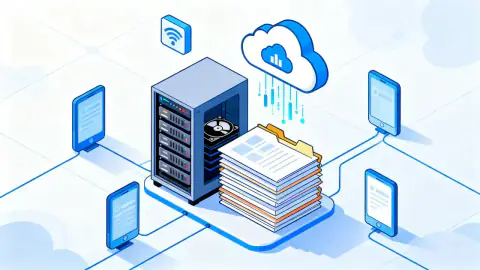
There are various ways to back up your files, each with unique benefits. The key is to select an approach that fits your needs and lifestyle.
- External hard drives for fast access and portability. These devices store copies of your files and are especially handy for large amounts of data.
- Cloud-based services ensure data is always accessible from anywhere in the world. They offer redundancy and often encrypt data for security.
- Network-attached storage (NAS) solutions—great for families, teams, or anyone managing multiple devices. They allow centralized, continuous backups.
For the highest security, many experts recommend the 3-2-1 rule: three copies of your data, on two different types of media, with one copy offsite. This triple-defense minimizes the risk of total data loss.
Prepare: What Should You Back Up?
Before you begin, it’s vital to identify your most precious data. Not all files are equally important. Focus on:
- Personal photos and videos—memories you can’t recreate.
- Important documents such as contracts, tax forms, and certificates.
- Work-related files if your career or business depends on them.
- Creative projects, research, and portfolios.
Take a quick inventory. This way, you’ll avoid wasting storage space and ensure what truly matters is protected.
Step by Step: How to Back Up Your Files
Every journey starts with a single step. Backing up doesn’t have to be overwhelming—just follow these practical guidelines, and you’ll be well on your way.
| Step | Action | Tips |
|---|---|---|
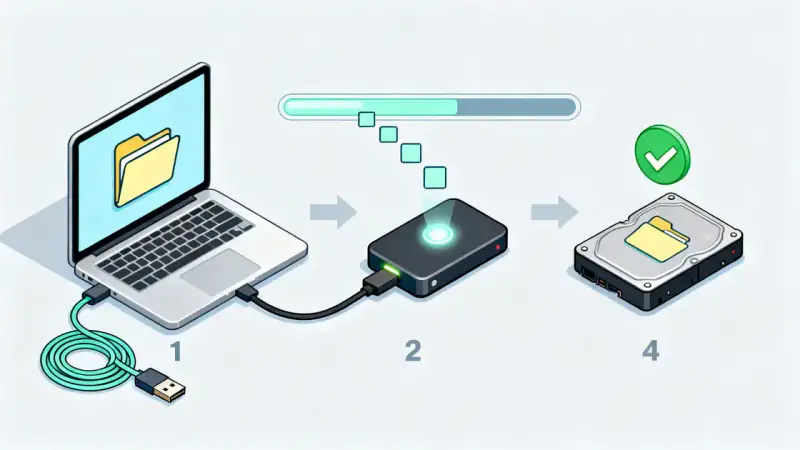
| 1 | Connect your chosen backup device (external drive, USB, or log into your cloud service). | Ensure device has enough space and is virus-free. |
| 2 | Locate files and folders you want to back up. | Use your inventory to prioritize essential files. |
| 3 | Copy, drag, or use backup software to move files to backup location. | Many systems have built-in backup features for automation. |
| 4 | Verify the backup by checking the destination drive or cloud folder. | Spot-check a few files to ensure they open correctly. |
| 5 | Set a regular schedule for future backups. | An automated system helps you stay protected without extra effort. |
The real power of backups lies in consistency. One backup is never enough if it’s not updated. Decide how often your data changes—daily, weekly, or monthly—and make backups accordingly.
Automating Backups: Set It and Forget It
Automation can remove the stress of remembering when to back up. Most operating systems come with built-in tools, such as File History for Windows, Time Machine for Mac, or third-party solutions like cloud synchronization services.
Set up your backup program to run on a regular schedule that suits you. Whether it’s every evening or once a week, letting your system automatically safeguard your files allows you to focus on living, working, and creating—without anxiety.
Avoiding Common Mistakes
Even with the best intentions, some missteps can undermine your backup plan. Watch out for:
- Relying on a single backup location—use multiple!
- Failing to test your backups regularly.
- Neglecting to update your backup schedule as your data grows.
Consistent habits and routine checks will keep your data secure and accessible when you need it most.
Keeping Your Backups Safe and Secure
Security is as important as redundancy. Protect your backups with strong, unique passwords. Use encryption if possible, especially for sensitive files.
Physically store external drives in a safe, dry place. If you use cloud services, make sure your account has two-factor authentication enabled to shield against unauthorized access.
Periodically review your backup strategy and stay informed about new threats or technology. Your files are worth the effort—treat their protection as an ongoing investment.
Your Data, Your Legacy
Your files tell your story. Memories and milestones, painstaking work, laughter and tears—all are woven into the fabric of your digital life.
By backing up your files, you preserve more than data; you safeguard your legacy. Take action today—step by step, your future self will thank you for the foresight, care, and effort you invested.
Start small. Start now. The peace of mind you gain is priceless, and the consequences of inaction can be unimaginable. Be the guardian of your digital world.